Salesforce system status monitoring is critical for admins and developers managing production orgs. The trust.salesforce.com platform provides real-time visibility into instance performance, scheduled maintenance, and security incidents across all Salesforce environments.
What is trust.salesforce.com?
Trust.salesforce.com is Salesforce’s official system status portal that displays real-time performance data, maintenance schedules, and security information for all Salesforce instances globally. This community-driven platform helps administrators proactively monitor their org’s health and plan around scheduled downtime.
Key features available on trust.salesforce.com:
- Live system performance metrics and historical data
- Planned maintenance notifications with detailed timelines
- Security incident reports and threat intelligence
- Email threat analysis and suspicious activity reporting
- Global privacy compliance updates
- Salesforce tool availability status
The platform serves as the single source of truth for Salesforce system health, replacing the need to contact support for basic status inquiries.
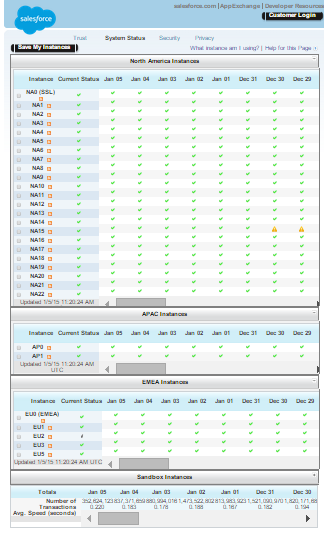
Salesforce System Status Indicators
Trust.salesforce.com uses five distinct status indicators to communicate instance health:
| Status | Description | Action Required |
|---|---|---|
| ✅ Instance Available | Normal operations, no issues detected | None |
| ⚠️ Performance Issues | Degraded performance, slower response times | Monitor closely, consider rescheduling non-critical operations |
| 🔴 Service Disruption | Partial or complete service outage | Halt critical operations, communicate with users |
| ℹ️ Informational Message | General updates, feature releases, or notices | Review for impact on your org |
| ❓ Status Not Available | Unable to determine current status | Check back shortly or contact support |
Understanding Salesforce Instance Naming Conventions
Salesforce instances follow geographic naming patterns that help identify data center locations:
- North America (NA): NA0, NA1, NA2… NA999
- Asia-Pacific (AP): AP0, AP1, AP2… (also includes legacy APO designation)
- Europe, Middle East, Africa (EU): EU0, EU1, EU2… EU999
- Sandbox Instances (CS): CS0, CS1, CS2… CS999 (Customer Success instances)
These prefixes indicate the primary data center location but don’t guarantee data residency due to Salesforce’s global infrastructure and disaster recovery protocols.
How to Find Your Salesforce Instance
To identify which Salesforce instance your org uses:
- Log into your Salesforce org
- Check the URL in your browser’s address bar
- The instance identifier appears in the domain (e.g., na30.salesforce.com indicates NA30 instance)

Alternatively, navigate to Setup → Company Information → Organization Detail to view your instance information programmatically.
Monitoring Best Practices for Salesforce Admins
Effective system status monitoring requires proactive strategies:
Set Up Status Notifications
- Subscribe to email alerts for your specific instance
- Configure RSS feeds for automated monitoring tools
- Follow @salesforcestatus on Twitter for real-time updates
Integration Patterns for Status Monitoring
Enterprise organizations often integrate trust.salesforce.com data into their monitoring dashboards using:
- REST API calls to status.salesforce.com/api/v1/instances
- Webhook subscriptions for incident notifications
- Custom Lightning components displaying status in Salesforce orgs
Maintenance Window Planning
Use scheduled maintenance information to:
- Plan deployments outside maintenance windows
- Communicate downtime to end users in advance
- Schedule data loads and integrations appropriately
Security and Compliance Features
Trust.salesforce.com provides security-focused features essential for enterprise compliance:
- Threat Intelligence: Real-time security incident reports
- Email Security: Phishing and malware threat analysis
- Compliance Updates: GDPR, CCPA, and other regulatory changes
- Incident Response: Detailed post-incident reports with root cause analysis
These features support Salesforce security interview questions and compliance auditing requirements.
Quick Deploy Considerations
Before initiating quick deploy operations in Salesforce, always verify system status:
- Check your instance status on trust.salesforce.com
- Verify no scheduled maintenance during deployment window
- Confirm related services (Heroku, MuleSoft) are operational
- Review any performance issues that might affect deployment success
Failed deployments during system issues can corrupt metadata and require rollback procedures.
Frequently Asked Questions
How often is Salesforce system status updated?
Salesforce system status updates in real-time, typically within 2-5 minutes of detecting issues. Automated monitoring systems continuously check instance health and update trust.salesforce.com immediately when status changes occur.
Can I get notifications for specific Salesforce instances?
Yes, you can subscribe to email notifications for specific instances by visiting trust.salesforce.com, selecting your instance, and clicking “Subscribe to Updates.” You can also configure RSS feeds and follow @salesforcestatus on social media.
What should I do during a Salesforce service disruption?
During service disruptions: halt critical operations, communicate with users about the outage, avoid making configuration changes, and monitor trust.salesforce.com for updates. Document any data inconsistencies for post-incident review.
How do sandbox instances appear on trust.salesforce.com?
Sandbox instances use CS prefixes (CS0, CS1, CS2, etc.) and appear in the same status dashboard. Sandbox status is particularly important during development and testing phases, as outages can impact deployment schedules.
Does trust.salesforce.com show integration service status?
Yes, trust.salesforce.com displays status for related services including Heroku, MuleSoft, Tableau, and Slack integrations. This comprehensive view helps identify integration pattern failures that might not be immediately obvious from your org alone.
For detailed technical documentation, visit the official Salesforce Trust site and review the System Status Help documentation.