Every Salesforce admin and developer needs to monitor system status for their org. Trust.salesforce.com provides real-time system performance data, maintenance schedules, and security information for all Salesforce instances worldwide.
What is Trust.Salesforce.com?
Trust.salesforce.com is Salesforce’s official system status portal that provides real-time performance and security information for all Salesforce services. This community portal serves as the central hub for monitoring your Salesforce environment’s health and availability.
Trust.salesforce.com provides the following data:
- Live system performance data across all instances
- Historical performance metrics and trends
- Planned maintenance schedules with minute-by-minute updates
- Security threat intelligence including phishing alerts
- Malware and social engineering threat notifications
- Data security best practices and recommendations
- Service disruption notifications and resolution updates
How to Check Salesforce System Status
To find the current status of your Salesforce system, follow these steps:
- Navigate to https://trust.salesforce.com in your browser
- Locate the four main navigation tabs: Trust, System Status, Security, and Privacy
- Click on “System Status” to access real-time monitoring data

The System Status page displays comprehensive information about system availability, performance issues, service disruptions, informational messages, and status indicators for all Salesforce instances.
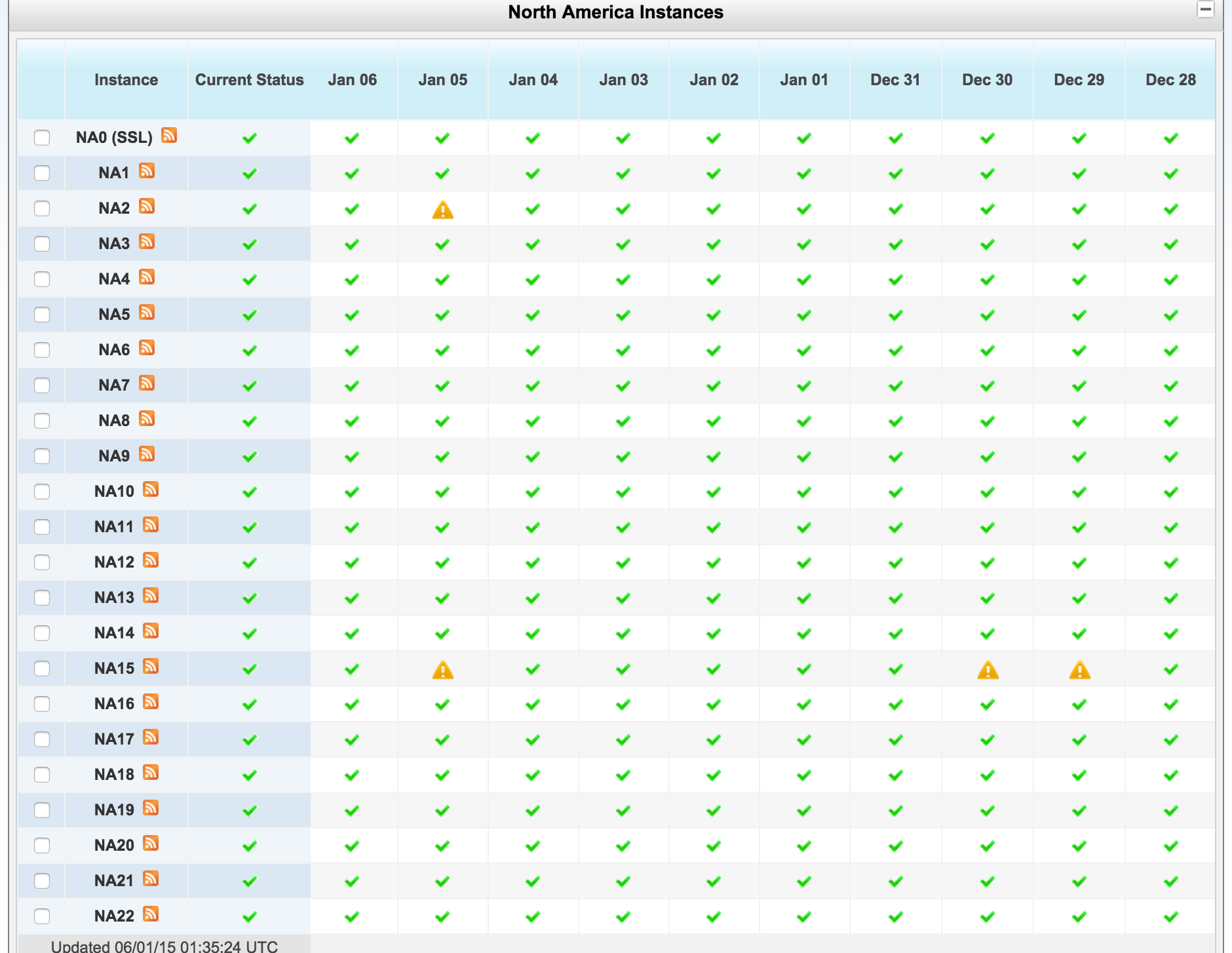
Salesforce Instance Regions and Types
Salesforce operates multiple instance types across global regions to ensure optimal performance and compliance:
- North America Instances: Primary data centers serving US and Canadian customers
- APAC Instances: Asia-Pacific region instances for optimal latency
- EMEA Instances: Europe, Middle East, and Africa regional instances
- Sandbox Instances: Development and testing environments separate from production
Each instance type displays current and historical status information, allowing you to monitor both your production org and development environments.
System Status Indicators
Trust.salesforce.com uses standardized icons to communicate system status:
| Instance Available | 🟢 | Performance Issues | 🟡 | Service Disruption | 🔴 | Informational Message | ℹ️ | Status Not Available | ❓ |
These visual indicators provide quick status assessment across all Salesforce services and instances.
How to Find Your Salesforce Instance
Identifying your specific Salesforce environment instance is essential for targeted status monitoring. Your instance determines which data center serves your org and affects performance monitoring.

To identify your instance:
- Log into your Salesforce org
- Check your browser’s address bar – the URL contains your instance identifier (e.g., na1, ap1, eu0)
- Navigate to Setup → Company Information to view your instance details
- Cross-reference this instance with the appropriate region on trust.salesforce.com
Monitoring Best Practices for Salesforce Admins
Effective system monitoring requires proactive approaches:
- Subscribe to Status Updates: Enable email notifications for your specific instance
- Check Before Major Deployments: Verify system status before releasing changes to production
- Monitor During Peak Hours: Track performance during high-usage periods
- Review Maintenance Windows: Plan around scheduled maintenance to minimize user impact
Integration with Salesforce Admin Workflows
System status monitoring integrates with broader Salesforce administration responsibilities. Admins should incorporate status checks into change management processes, user communication strategies, and incident response procedures.
Security and Trust Information
Beyond system status, trust.salesforce.com provides comprehensive security intelligence:
- Real-time threat assessments and security advisories
- Compliance certifications and audit reports
- Data residency and privacy policy updates
- Security best practices for org configuration
This information supports enterprise security requirements and helps maintain compliance with industry regulations.
Frequently Asked Questions
How often is Salesforce status updated on trust.salesforce.com?
Salesforce updates system status in real-time. Performance metrics refresh every few minutes, and incident notifications appear immediately when issues are detected or resolved.
Can I get notifications when my Salesforce instance has issues?
Yes, you can subscribe to email notifications for your specific instance. Visit trust.salesforce.com, select your instance, and click “Subscribe to Updates” to receive alerts about maintenance, incidents, and performance issues.
What should I do if trust.salesforce.com shows my instance is down?
First, verify the issue by attempting to log into your org. If confirmed, check the incident details on trust.salesforce.com for estimated resolution time and workarounds. Communicate the status to your users and monitor for updates.
How do I find my Salesforce instance if I’m not sure which one I’m on?
Log into your Salesforce org and check the URL in your browser’s address bar. The instance identifier appears in the domain (e.g., yourorg.lightning.force.com indicates you’re on a Lightning instance). You can also find this in Setup → Company Information.
Does trust.salesforce.com show sandbox status separately from production?
Yes, sandbox instances are listed separately from production instances. This allows you to monitor your development and testing environments independently from your production org status.